
Web Hosting 101: 5
Web Hosting 101: 5 Critical Factors Before You Buy (Checklist)
Web hosting is where bad marketing goes to retire.
“Unlimited everything.”
“Blazing fast.”
“99.99% uptime.”
And then you buy the $2.99/mo plan, your site crawls, support ghosts you, and the renewal bill shows up like a jump scare.
Here’s the deal: hosting isn’t mysterious. It’s just easy for vendors to hide the parts that matter until after you’ve migrated, set up email, and sunk a weekend into it.
This guide is the five-factor checklist I use before I hand any host my credit card.
Speed you can actually measure (not “up to” nonsense)
Speed is half server, half your site. But a good host makes it hard to be slow.
What to look for
- Modern stack (Nginx/LiteSpeed, recent PHP, HTTP/2+)
- Server-side caching you can control (and clear)
- A CDN option (built-in or easy to add)
- Data center locations near your users (or at least a CDN that covers the gap)
What to test (in 30 minutes)
1) Spin up a basic site (even a one-page template).
2) Run PageSpeed Insights or Lighthouse.
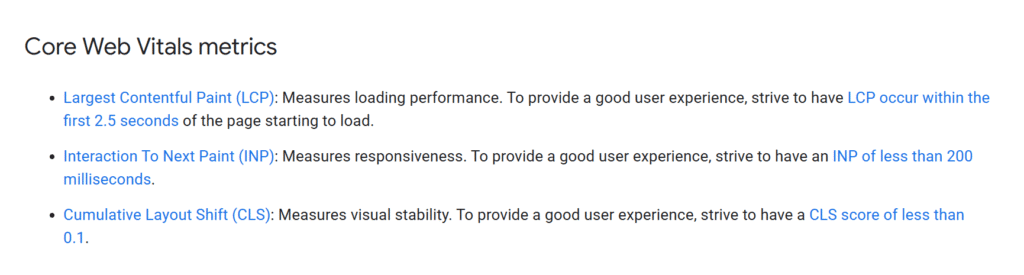
3) Look at Core Web Vitals. Responsiveness matters now more than ever—Google’s INP replaced FID as a Core Web Vital. :contentReference[oaicite:0]{index=0}
Google’s own Search docs spell out the Core Web Vitals trio (LCP, INP, CLS) and the “good” thresholds (like aiming for INP under 200ms). :contentReference[oaicite:1]{index=1}
Red flags
- You can’t find any mention of caching/CDN in the docs.
- The host locks basic performance features behind “Turbo Ultra Max Pro” tiers.
- Your brand-new, empty site still shows a terrible server response time.
Uptime isn’t a promise — it’s process
Every provider has outages. The question is whether they’re honest and operationally mature when things break.
What to look for
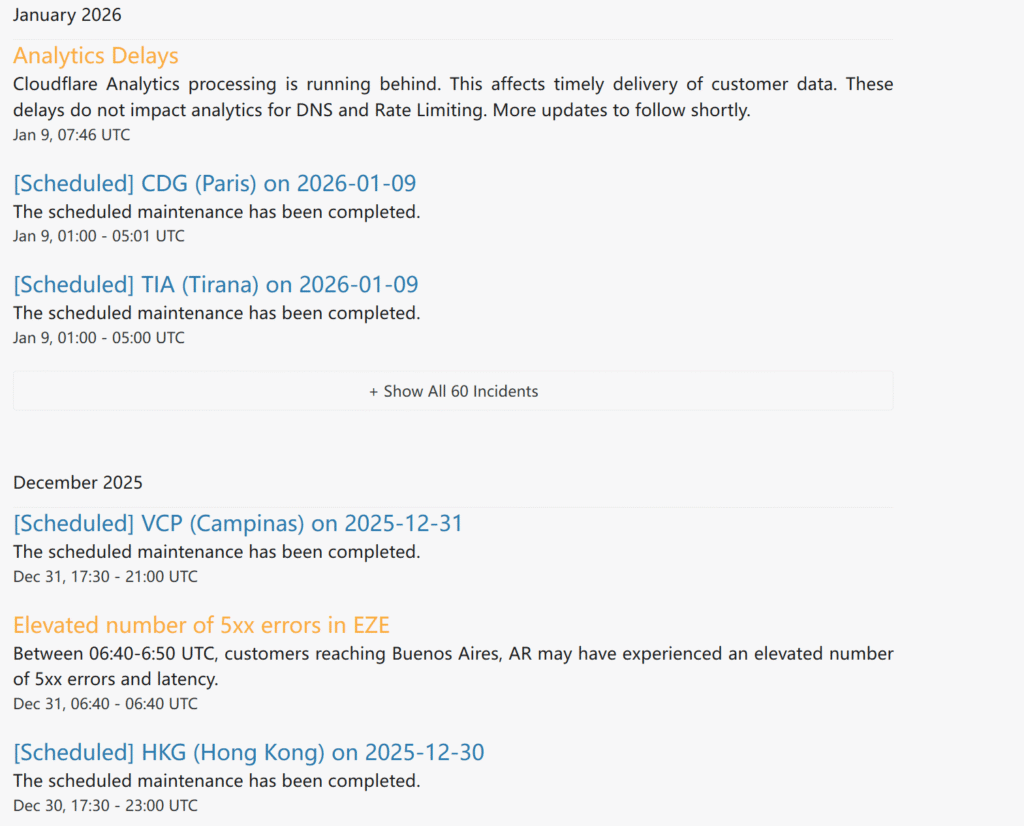
- Public status page with incident history (not a blank “All systems operational” badge)
- Clear uptime SLA language (and what compensation looks like)
- Evidence of redundancy (multiple regions, failover, etc.)—if you’re running something business-critical
A good status page shows timestamps, impact, and post-incident notes. Cloudflare’s public incident history is a solid example of the transparency bar you want. :contentReference[oaicite:2]{index=2}
What to test
- Google: “[HostName] status” and see if it’s real.
- Search the incident history for the last 90 days. Is it detailed? Or vibes?
Red flags
- No status page (or it’s clearly abandoned).
- Incidents with zero explanation for hours.
- They blame “upstream providers” every time.
Support that can fix things (not just apologize)
Support is what you’re really buying. The server is the commodity.
What to look for
- 24/7 support that includes technical help (not just billing)
- Real channels: chat + ticket, plus phone if you need it
- A knowledge base that’s specific and maintained (not generic fluff)
The “one stupid question” test
Before buying, ask something slightly technical but common, like:
- “Can I restore a backup myself without contacting support?”
- “Do you support staging for WordPress?”
- “Can I force HTTPS site-wide?”
You’re not testing their kindness. You’re testing whether they can give a straight answer without a sales script.
Red flags
- “We can answer that after you purchase.”
- Support won’t confirm backup/restore options.
- Everything routes to a bot or “guided wizard” that never reaches a human.
Security basics should be included (and boring)
If a host charges extra for basic security, they’re telling you exactly who they are.
What to look for
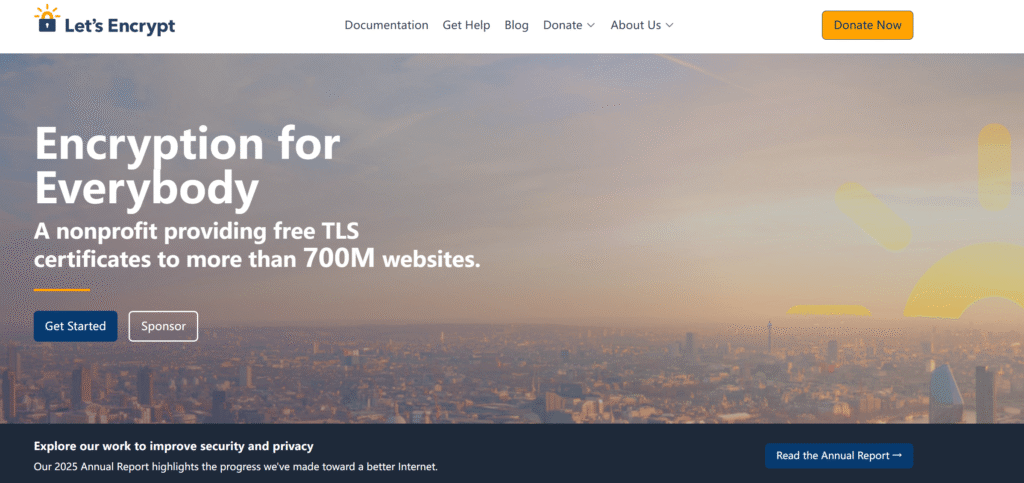
- Free SSL (should be standard) — Let’s Encrypt exists specifically to make TLS certificates free and easy. :contentReference[oaicite:3]{index=3}
- Automatic updates for server components (and clear patching posture)
- Account security (MFA for your hosting dashboard)
- Isolation between accounts (especially on shared hosting)
- Backups you control (yes, backups live in security too)
What to test
- Can you enable SSL in one click?
- Is MFA available on your hosting account?
- Is there a WAF/DDoS story that isn’t just a buzzword salad?
Red flags
- SSL costs extra.
- “Backups available” but no schedule, no retention, no restore process.
- Malware cleanup is a paid add-on after you get infected.
Pricing that won’t punish you later (renewals + add-ons + lock-in)
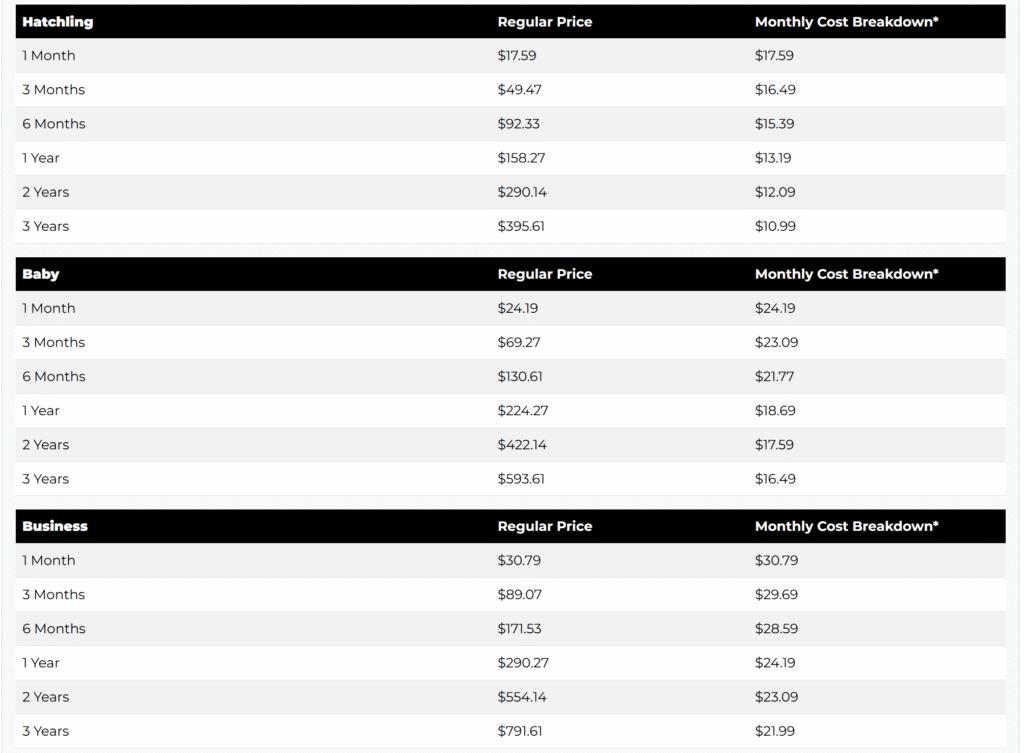
Intro pricing is marketing. Renewal pricing is reality.
Some providers are refreshingly explicit about this. Bluehost publishes a renewal pricing FAQ/list. :contentReference[oaicite:4]{index=4}
HostGator also spells out that discounted intro rates renew at regular prices shown in their pricing charts. :contentReference[oaicite:5]{index=5}
What to look for
- Clear renewal rates (not hidden in tiny footnotes)
- Monthly billing options (even if pricier) so you’re not locked into 3 years
- Migration policy (free? paid? DIY?)
- Add-on traps: “backup,” “security,” “email,” “domain privacy,” “CDN”
What to test
- Screenshot the checkout page AND the renewal page before you buy.
- Check if the “deal” requires a 36-month term.
- Identify what you’ll pay in year 2, not year 1.
Red flags
- Renewal pricing isn’t documented anywhere public.
- You can’t cancel add-ons easily.
- Getting your site off the host requires a support ticket and a prayer.
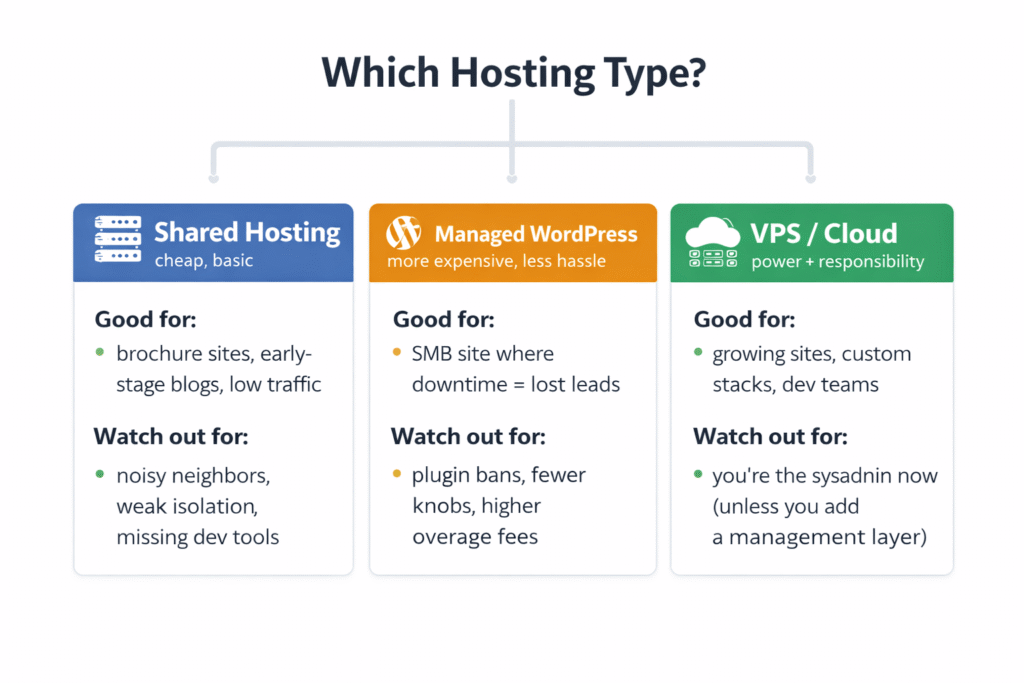
Quick reality check: Which hosting “type” matches you?
This saves people the most money because it prevents buying the wrong class of product.
Shared hosting (cheap, basic)
- Good for: brochure sites, early-stage blogs, low traffic
- Watch out for: noisy neighbors, weak isolation, missing dev tools
Managed WordPress (more expensive, less hassle)
- Good for: SMB sites where downtime = lost leads
- Watch out for: plugin bans, fewer knobs, higher overage fees
VPS/Cloud hosting (power + responsibility)
- Good for: growing sites, custom stacks, dev teams
- Watch out for: you’re the sysadmin now (unless you add a management layer)
Examples (not “the best,” just common options):
- Shared: Bluehost, Hostinger, SiteGround
- Managed WP: WP Engine, Kinsta (premium), SiteGround (middle ground)
- VPS/Cloud: DigitalOcean, Linode/Akamai, AWS Lightsail; “managed layer” options like Cloudways
Buy the class that matches your tolerance for fiddling.
How it compares to competitors (real talk)
Bluehost vs SiteGround vs Hostinger (typical shared-hosting shoppers)
- Bluehost: widely used, beginner-friendly onboarding, but watch the long-term pricing details and bundled add-ons.
- Hostinger: often cheaper up front, generally simple UI, good if you’re budget-first and can troubleshoot a bit.
- SiteGround: usually pricier, often bought for performance/support vibes; better fit when speed and help matter more than the lowest bill.
WP Engine vs Kinsta vs “regular hosting + WordPress”
- WP Engine/Kinsta: you pay for guardrails, support, and a WordPress-optimized environment. Great if your site is revenue-critical.
- Regular hosting: cheaper, more flexible, but you’re doing more maintenance and debugging when things break.
Pick based on your risk tolerance, not the marketing adjectives.
The Checklist (copy/paste before you buy)
Speed
- Caching is included and controllable
- CDN is available (built-in or easy)
- A basic test site scores decently in Core Web Vitals (especially INP)
Uptime
- Public status page exists and shows real incident history
- SLA is documented (and not pure theater)
Support
- 24/7 human support is available for technical issues
- Pre-sales answers are specific and not evasive
Security
- Free SSL included
- MFA available for the hosting dashboard
- Clear backup schedule + retention + restore path
Pricing
- Renewal pricing is public and understandable
- No required 3-year lock-in to get a sane price
- Add-ons are optional and easy to remove
- Migration/offboarding won’t be a nightmare
If a host fails two or more of these, the cheap price is almost never worth the future pain.